
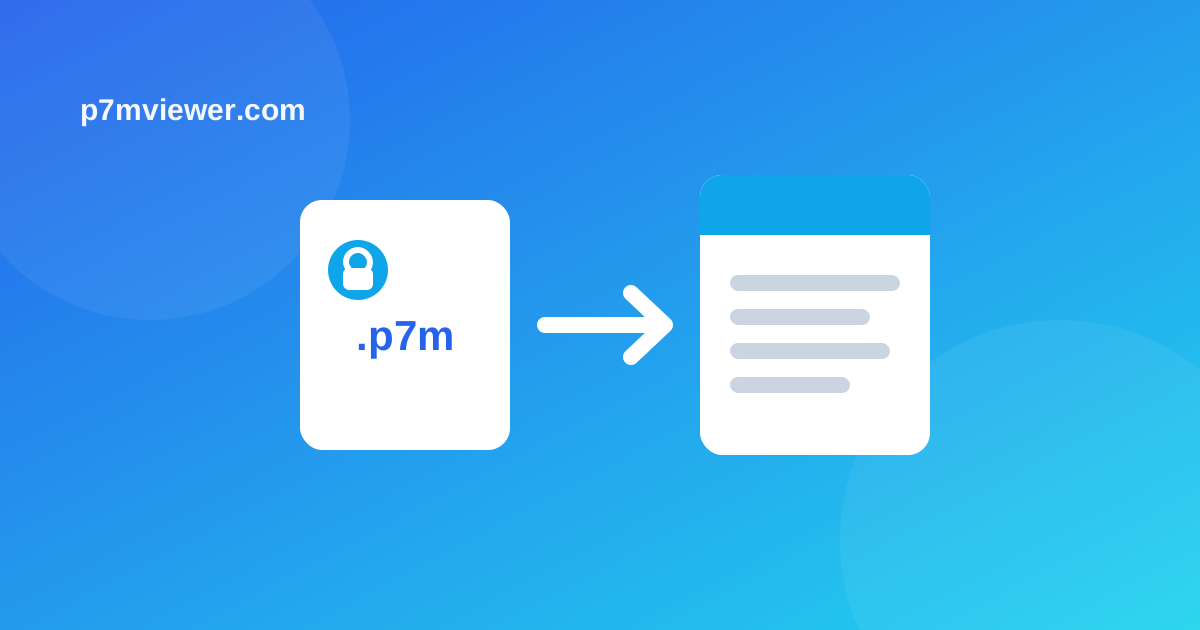
You received a .p7m attachment via email — an invoice, a contract, a signed document — and you can't open it. It's normal: let's see how to open a .p7m attachment received via email.
Why the .p7m attachment doesn't open from the email

The attachment is digitally signed and enclosed in a .p7m envelope. The mail program does not know how to show it and often even hides its extension. It's not an error: you just need to remove the document from the envelope.
Step 1 — save the attachment
From your email (Gmail, Outlook, Libero, webmail…):
1. Open the message with the .p7m (or `.xml.p7m`) attachment.
2. Download / Save the attachment to your device.
Important: save the file first, do not try to open it from the email preview.
Step 2 — open the file with P7M Viewer
1. Open the Open .p7m tool.
2. Upload the saved attachment.
3. View or download the original document.
If the attachment is an invoice, you will see it in readable form; if it's a signed PDF, you get the clean PDF.
From your smartphone
Do you receive emails on your phone? Save the attachment and open it with the site, or with the free P7M Viewer app for Android, convenient for opening and sharing on the fly.
Frequently asked questions
Why doesn't the .p7m attachment open? It is signed: you need a tool to extract it, such as P7M Viewer.
Is it free? Yes, opening a single attachment is free.
Do I have to install a program? No, the browser is enough.
In summary
To open a .p7m attachment received via email, save it on your device and upload it to P7M Viewer: in a few seconds read the document, for free and without installing anything.